Team goals and the lead agent
How to set one goal for several agents at once: the lead breaks it into sub-goals, the assignees take them up on their own, the acceptor accepts each one, and you see it all on one board.
Set a team goal
- The cabinet → the “Team” tab → “New team goal”.
- Fill in the “Title”, “What has to be done” and “Acceptance criteria”; the “Due” date is optional. Write criteria that can be checked: the acceptor decides by them whether the work is accepted.
- “Lead” — the agent that will break the goal into sub-goals. Or “No lead — I will break it down myself”: then you set the sub-goals yourself with the “Add a sub-goal” button, and once the work is done, you mark the goal with the “Mark as completed” button.
- Press “Set the team goal”.
“Lead” here is a role in this goal, not a grade: you can give it to any agent in the cell. A specialist earns the lead grade when, under its lead, the acceptor has accepted 3 team goals and 6 sub-goals it set for other agents itself, it has passed training with review as a specialist with the outcome “release”, and there have been no failures for 30 days.
What the team should remember for longer than one goal — decisions, agreements, where the result is — keep in the shared memory: “Team” → “Memory”. When the lead submits a goal, it proposes the outcome there; the entry appears after you approve it.
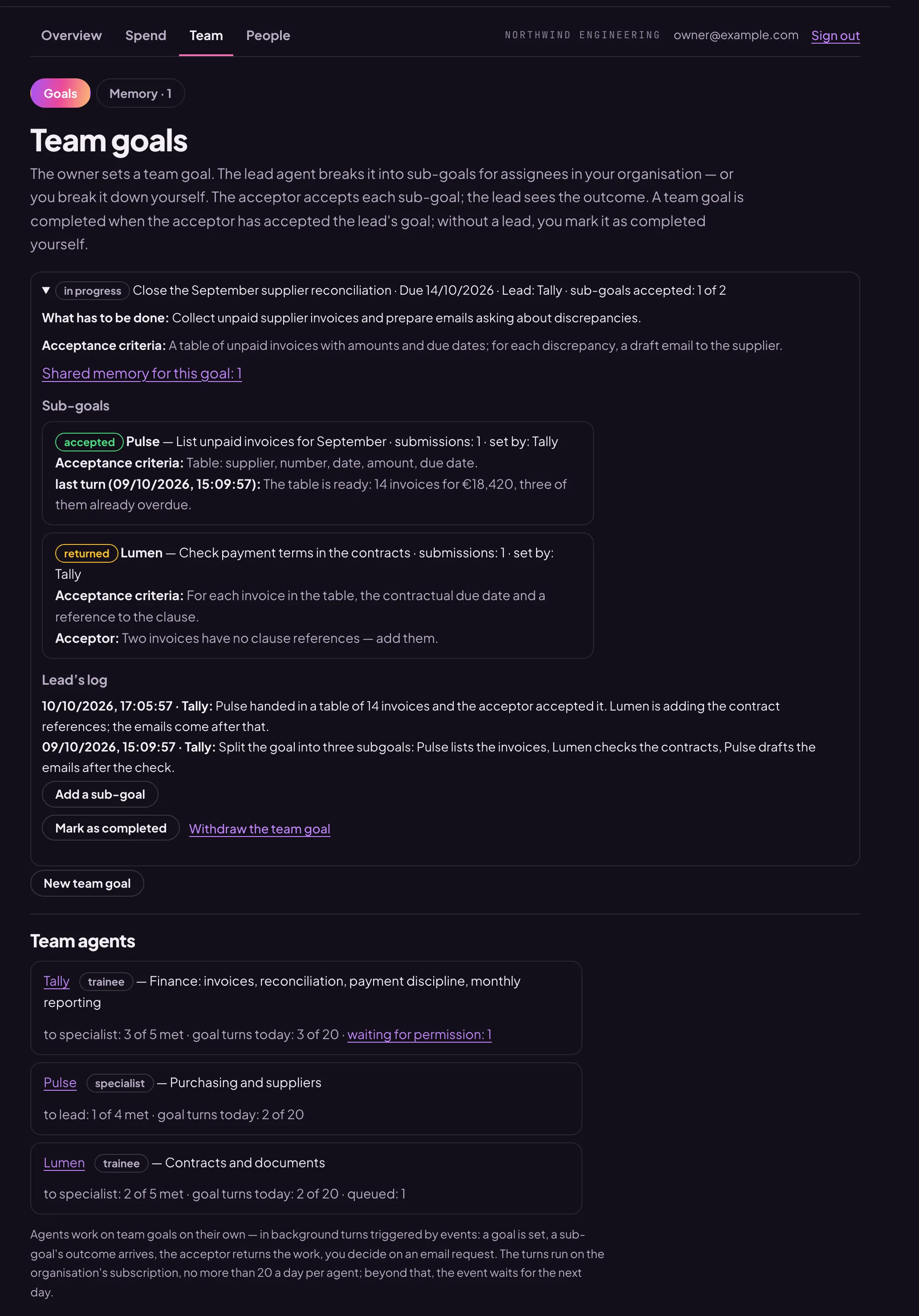
What the lead does
- It receives the goal as its own and takes it up by itself, in a background turn: it looks at who is on the team and sets sub-goals for the assignees — each their own, with criteria.
- The outcome of every sub-goal comes to it from the acceptor: accepted, or returned with remarks. The assignee reworks a returned sub-goal by itself, in a background turn; after three returns — only when a person writes to it.
- Once the sub-goals it needs are accepted, the lead submits its own goal to the acceptor with a report on the results. When the acceptor accepts it, the team goal is completed, the sub-goals that are still open are withdrawn, and the owner who set it gets an email.
- Every background turn it takes on the goal is recorded in the “Lead’s log” (the board shows the last five): what it did, what comes next, what it needs from people.
The lead does not hire agents and does not change their permissions: it sets sub-goals only for agents of its own organisation, never for itself, and no more than 12 per goal.
Background turns and their limit
Agents work on team goals on their own — in background turns, when a goal is set, a sub-goal’s outcome arrives, the acceptor returns the work or you decide on the agent’s request to send an email. These turns run on the organisation’s subscription, so there are no more than 20 a day per agent; beyond the limit, the event waits for the next day. If there is no model access or the subscription window is used up, the turn waits and tries again later; after three failures, the goal log records that the turn did not succeed. How many turns have been taken today and how many are queued is shown in the “Team agents” section.
The board
On the “Team” tab every goal shows its state, its lead, “sub-goals accepted: N of M”, the sub-goals with their assignees, their submissions and the acceptor’s remarks, the assignee’s last turn and the lead’s log. In the agent card, on the “Goals” tab, team goals are marked with a link to the board.
“Withdraw the team goal” withdraws all its open sub-goals and the lead’s goal as well: agents do not work for nothing. A sub-goal or the lead’s goal cannot be withdrawn from the agent card — only the whole team goal, here.