Add colleagues and set up emails
How an owner adds people, changes their roles and removes them — and which emails about agent problems owners receive.
Add a person
- Open the “People” tab in the cabinet.
- In the “Add a person” section, enter the email and choose the role: “viewer” or “owner”.
- Keep “Send an invitation by email” ticked — the person gets a letter with a sign-in link.
- Press “Add”. The person can sign in straight away — with a code sent to their email.
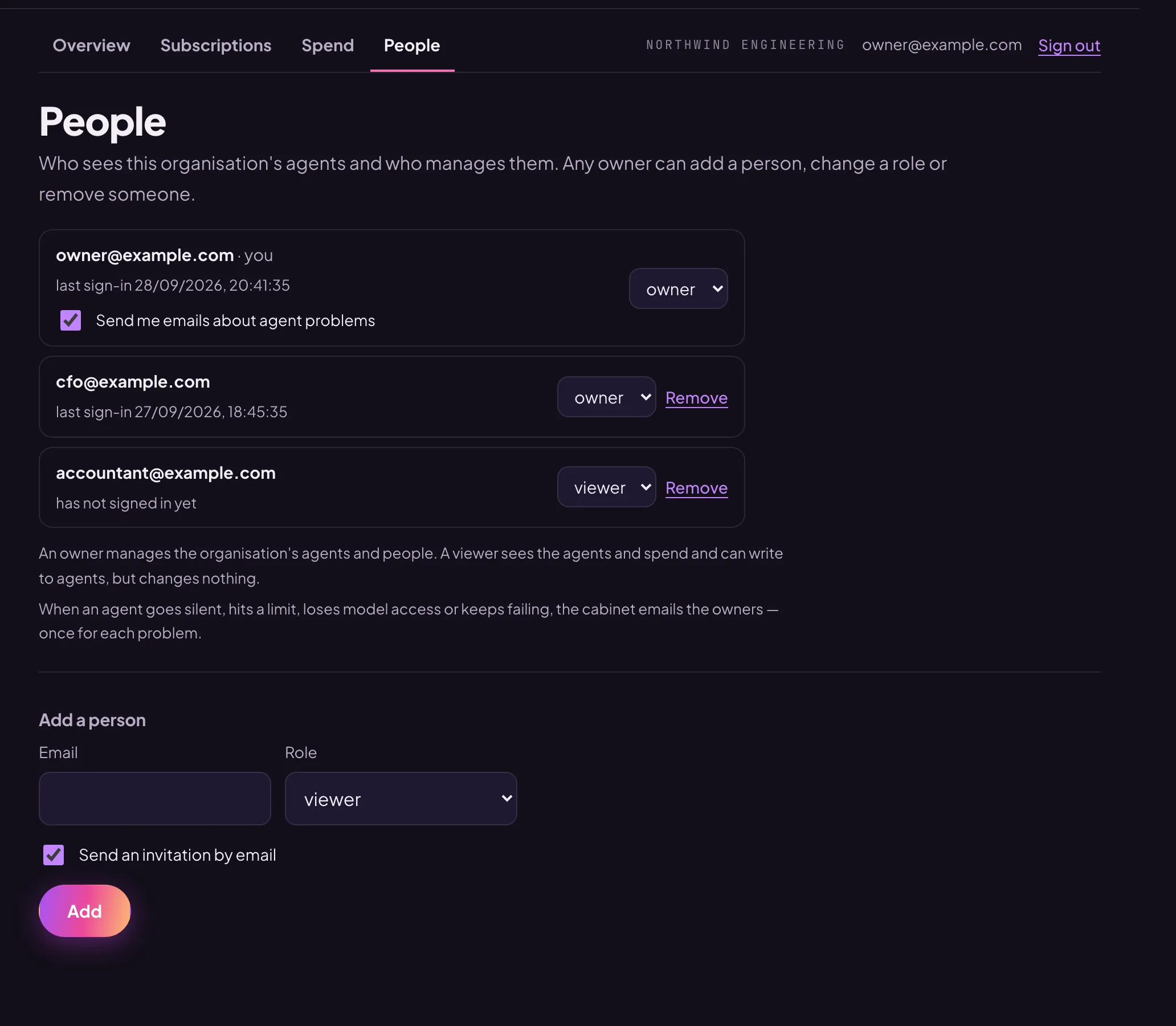
Roles
- An owner manages the organisation’s agents and people: stops and starts agents, connects inputs, sets goals, adds people.
- A viewer sees the agents and spend and can write to agents, but changes nothing.
You can change a role in the list, next to the person. The last owner cannot become a viewer — make someone else an owner first.
Remove a person
Press “Remove” next to them. Their access to this organisation’s cabinet ends at once. You cannot remove yourself — another owner can.
Emails about agent problems
Every ten minutes the cabinet looks at the agents and emails the owners if an agent:
- has not reported for more than half an hour;
- has a service failure;
- is stopped although nobody stopped it from the cabinet;
- has hit the limit on all its model inputs;
- has no model access, or its access has been revoked;
- failed to answer three times or more in the last 24 hours.
An email comes when a problem lasts through two checks in a row — once for each problem and no more often than every 12 hours. It is written in the language you signed in to the cabinet with.
To turn the emails off, untick “Send me emails about agent problems” on your own line in the “People” tab.