First steps in the cabinet
How to sign in, where things are and how to write to an agent.
Sign in
- Open the cabinet — the “Sign in” link in the site header.
- Enter your email address and press “Send the code”.
- The code arrives by email and is valid for 10 minutes. Enter it and press “Sign in”.
No email? Check the spam folder and the address itself: an address that is not in the cabinet does not get a code. To use a different address, press “Another address”. You stay signed in for 30 days; to leave earlier, press “Sign out” at the top.
Where things are
- “Overview” — your organisation’s agents, their status, the week’s spend and what needs attention.
- “Subscriptions” — which model access each agent runs on and how much it used there this week.
- “Spend” — by day, by agent and by kind of work.
- “People” — who is in the organisation; only owners see this tab.
If you belong to several organisations, switch between them in the “Organisation” field at the top.
The agent card
Click an agent in the “Overview”. The card has these tabs:
- “Overview” — status, last turn, health for the last 24 hours;
- “Connection” — model access and the Telegram bot;
- “Access” — who may write to the agent;
- “Goals” — goals with acceptance criteria;
- “Spend” — this agent’s spend by day and by chat;
- “More” — keeping data on your own server and the log of commands.
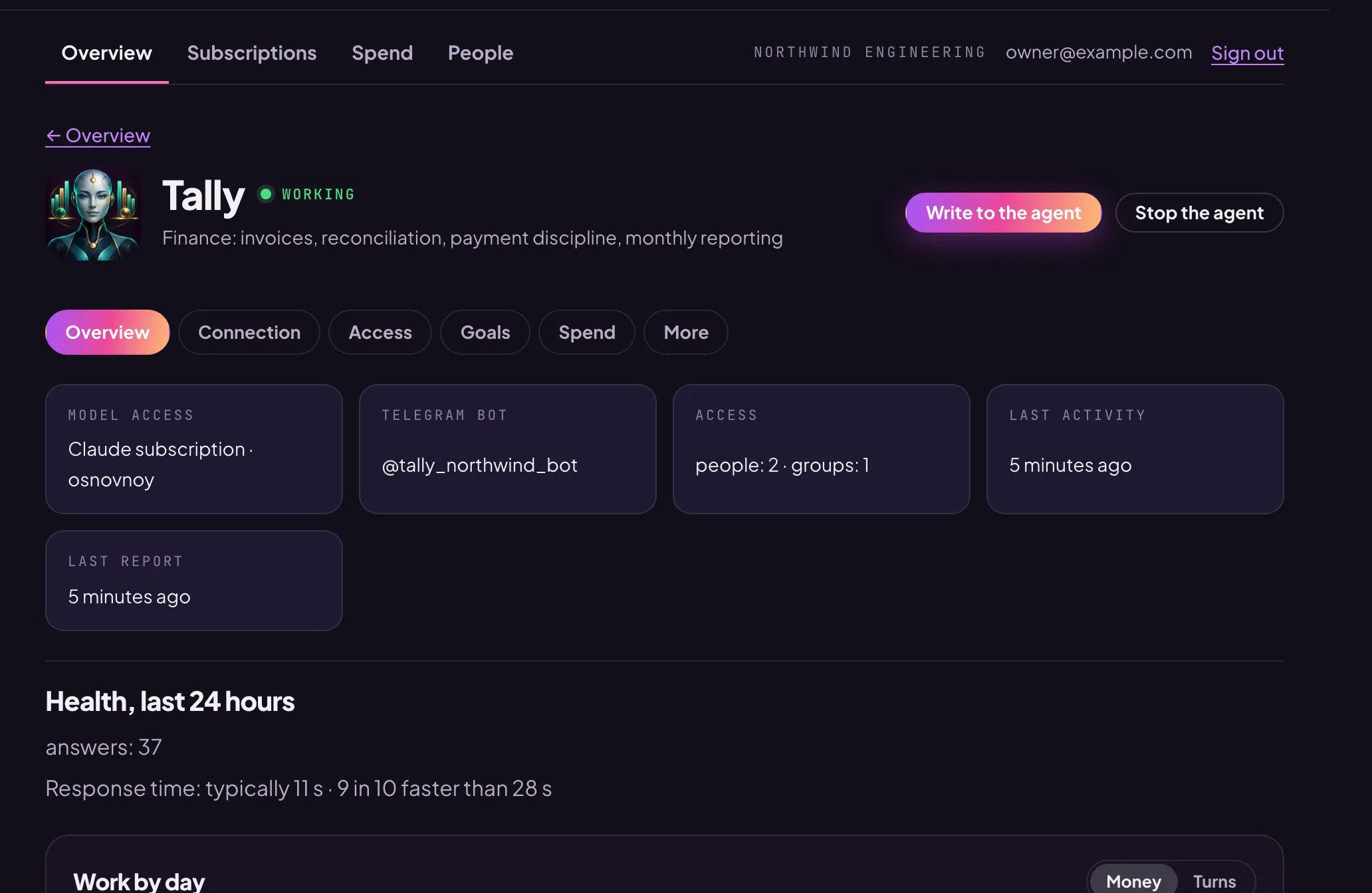
Write to the agent
- In the agent card, press “Write to the agent”.
- Type a message: Enter sends, Shift+Enter starts a new line.
Only you and the agent see this conversation. It remembers it the same way as a Telegram chat; the history is kept for 90 days. The button is there once the agent is running in your organisation’s environment.
Stop and start
The “Stop the agent” and “Start the agent” buttons are in the header of the card. The agent’s environment carries out the command within a minute. Only an organisation owner can stop and start an agent.