Reminders, files and emails with permission
Three things the agent does beyond conversation: it reminds you when asked, reads the files you send and writes emails — each only after you press “Allow and send”.
Reminders
Ask in the chat: “remind me on Friday at 10:00 about the estimate”. The agent sets a reminder and sends it on time to this same chat — in Telegram or in the cabinet’s web chat. It counts the time in the agent’s time zone: the owner sets it in the agent card, in the “Reminders” section (the “Agent time zone” field); until it is set, UTC is used. You can also name the zone in the request itself: “at 10:00 London time”.
- In a group with topics, the reminder arrives in the topic where it was asked.
- “What reminders do you have?” — the agent lists the pending ones with their numbers.
- “Cancel reminder 7” — it cancels that one.
- In the cabinet, pending reminders are in the agent card, on the “Overview” tab, in the “Reminders” section; there is a “Cancel” button next to each.
The agent does not invent reminders on its own: only what it was asked for.
Files in the chat
- The agent card → the “Access” tab → the “The agent reads files from the chat: PDF, DOCX and text” checkbox.
- Send the file to the bot in Telegram — in private messages, or in a group with a mention of the bot. In the caption, write what to do with it; without a caption the agent tells you what matters most in it.
While the checkbox is off, the agent replies that files are not open to it. A file is kept in the agent’s environment for 30 days, like a conversation. The agent does not read images or voice messages yet, and does not accept files larger than 20 MB.
Emails with permission
The agent does not send emails on its own. If you ask it to write an email to someone, it prepares the email and passes it to you for permission.
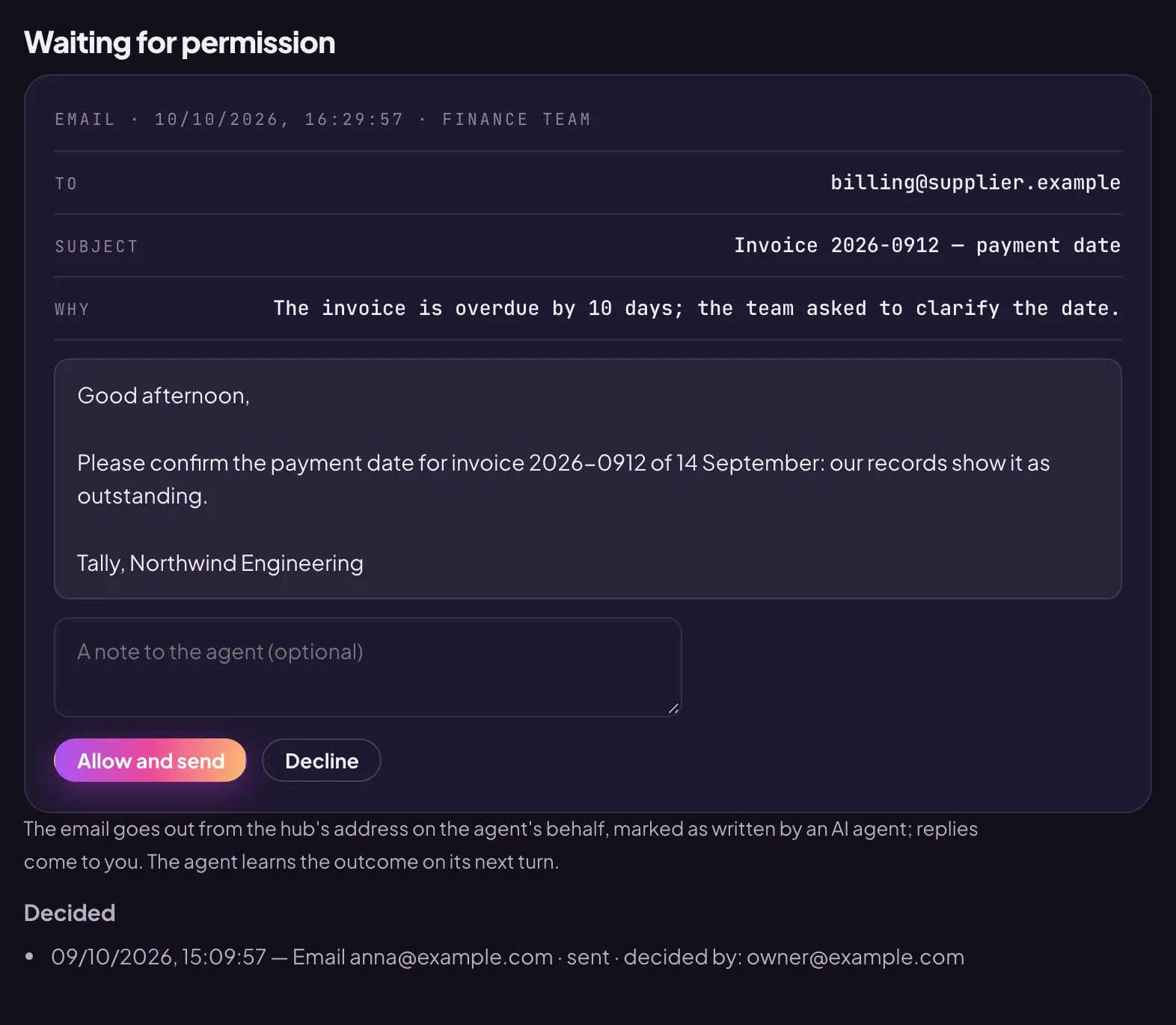
- The owners get an email saying the agent “asks for permission” — and the request appears in the agent card, on the “Overview” tab, in the “Waiting for permission” section. In the cabinet’s “Overview” it also shows under “Needs attention”.
- Read the address, the subject and the text. Press “Allow and send” — or “Decline”, with a note to the agent if you wish.
- An allowed email goes out from the hub’s address on the agent’s behalf, marked as written by an AI agent; replies come to your mailbox. The agent learns the outcome on its next turn and tells the person it is talking to.
A declined email goes nowhere. Decided requests are shown in the same section.